HR Exit Interview Form
Exit Interview Form
The Exit Interview Form is used by the HR Division to record feedback from employees who are leaving the organization.
It helps HR gather insights about employee experiences, identify areas for improvement, and complete the exit documentation process.
| Role | Access Rights |
|---|---|
| HR Manager | Can create, complete, and submit the Exit Interview Form. |
| HR Staff | Can create, complete, and submit the Exit Interview Form. |
| Other Roles | Not permitted to access or view the form. |
Steps to Submit the Exit Interview Form
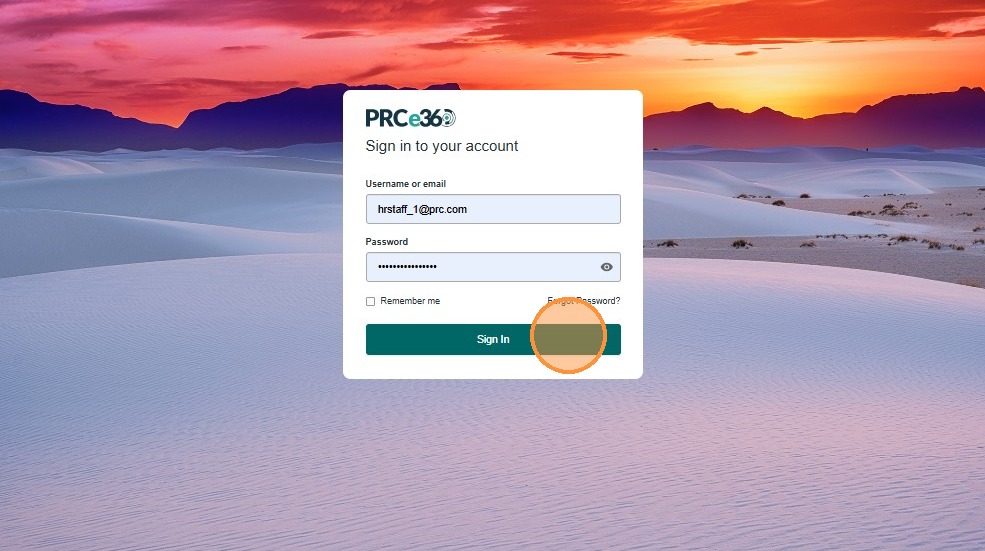
- Enter your username/email and password.
- Click Sign In to access the system.
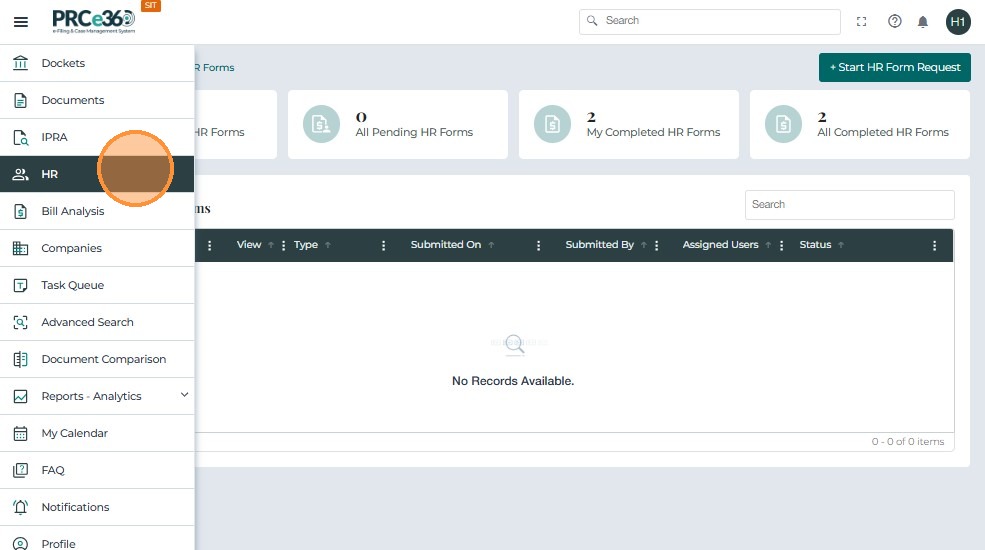
- Once logged in, click the menu icon on the left navigation bar.
- From the menu options, select HR to open the HR dashboard.
Once inside the HR Module, the HR Dashboard displays an overview of your form activity:
- My Pending HR Forms – Forms that are saved but not yet submitted.
- My Completed HR Forms – Forms you have submitted.
- All Completed HR Forms – All forms completed by HR users.
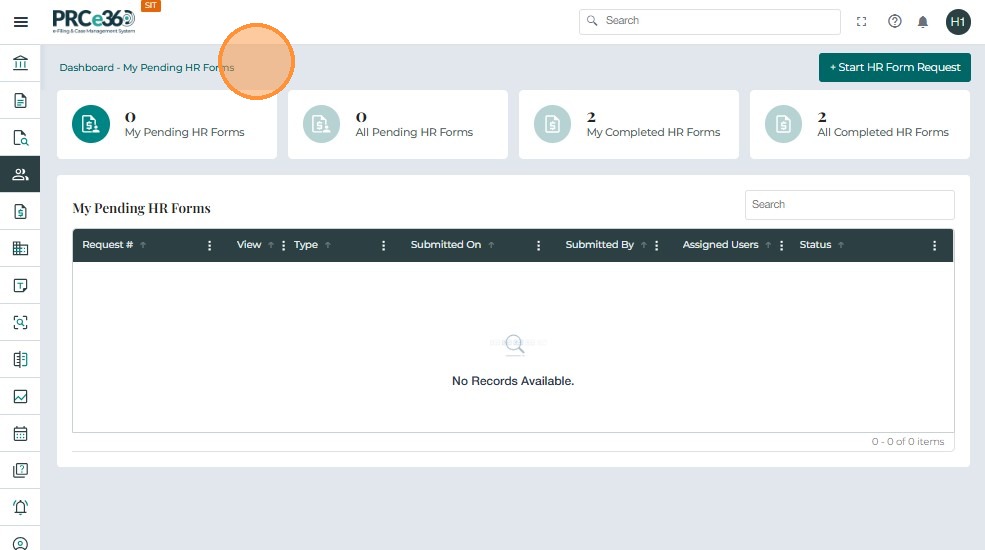
To begin creating a new form:
- Click the + Start HR Form Request button in the upper-right corner of the dashboard.
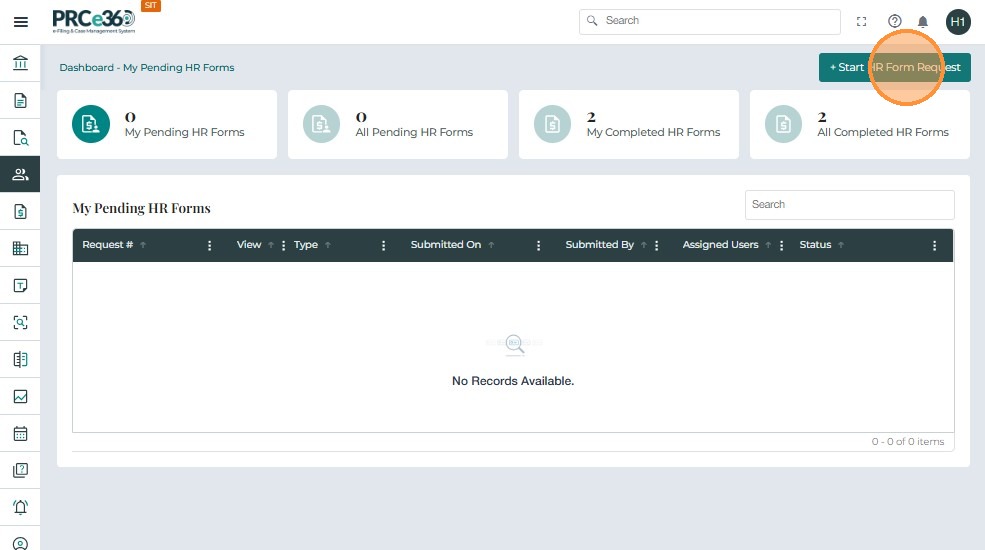
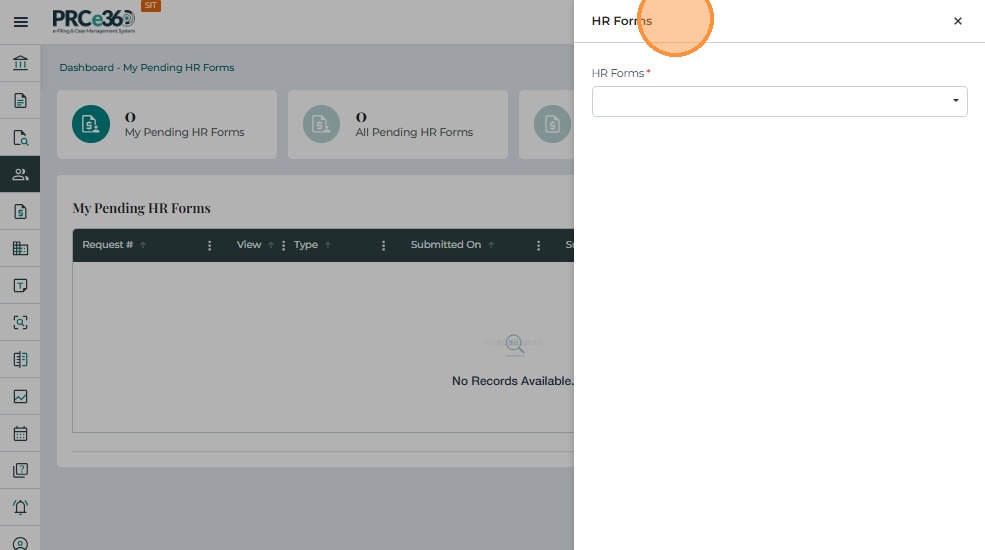
- After clicking + Start HR Form Request, a window labeled HR Forms appears.
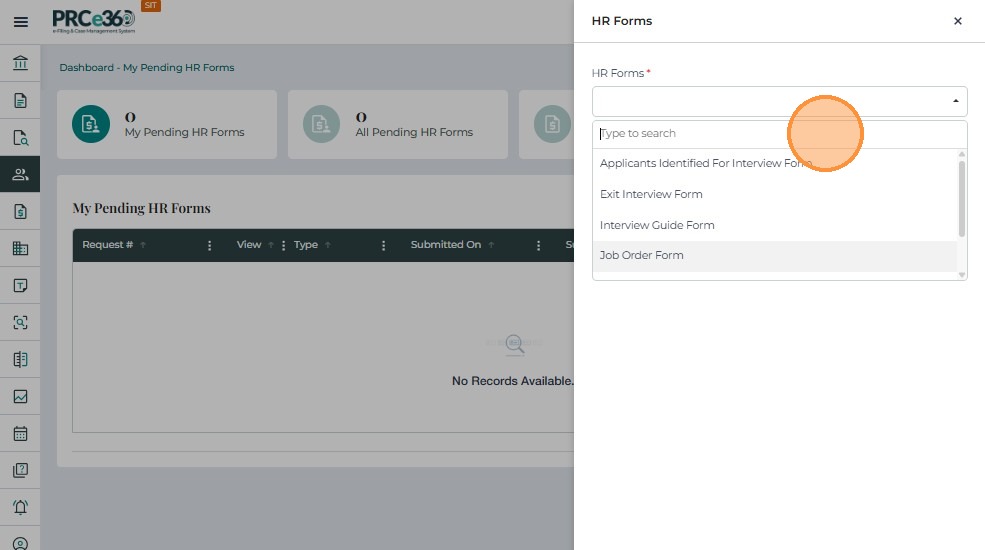
- Click inside the dropdown field to view available HR forms.
- From the list, choose Exit Interview Form.
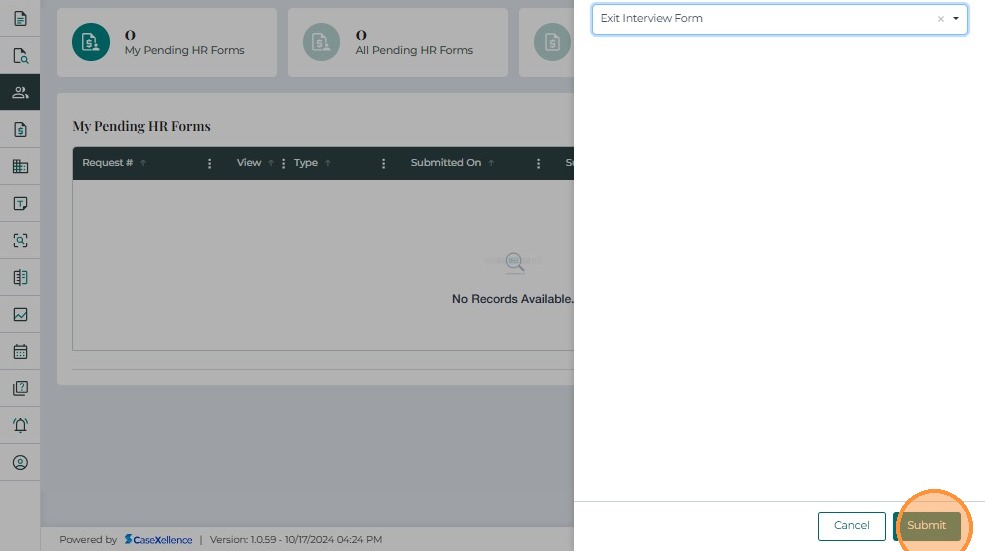
- Once Exit Interview Form is selected, click the Submit button in the lower-right corner.
- The system opens the Exit Interview Form page, where you can begin entering the employee’s details and feedback information.
Completing the Exit Interview Form
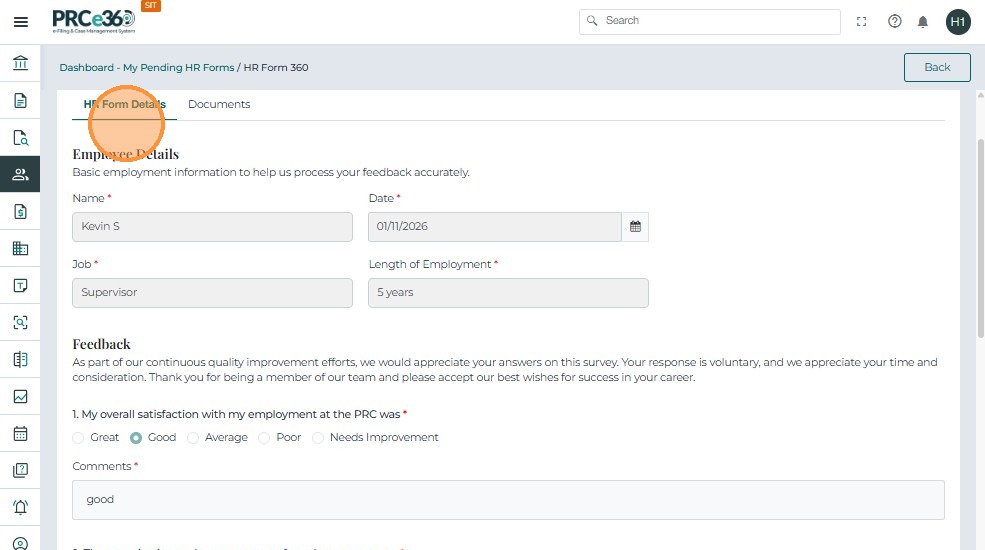
Once the Exit Interview Form opens, you can begin entering details.
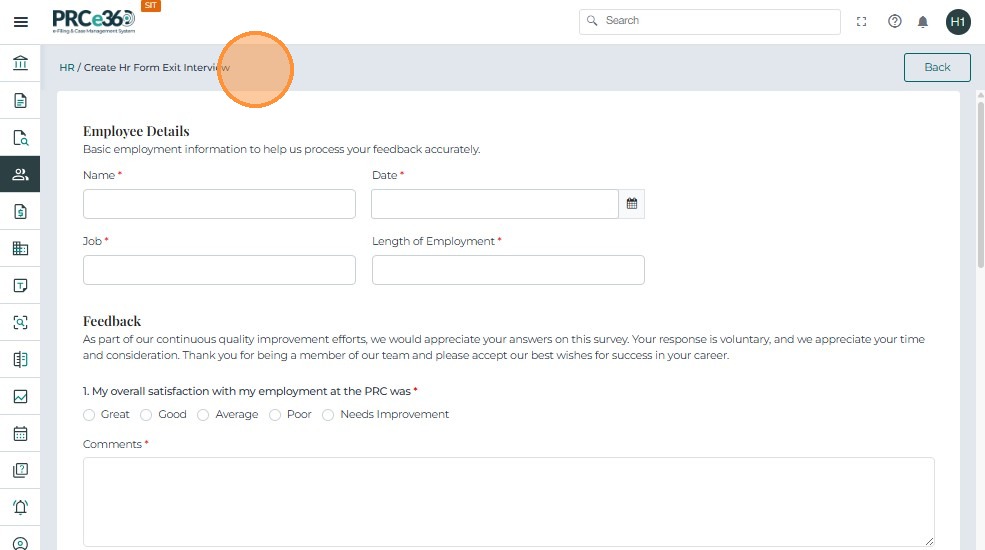
The form contains multiple sections, each designed to capture specific information from the employee exit process.
-
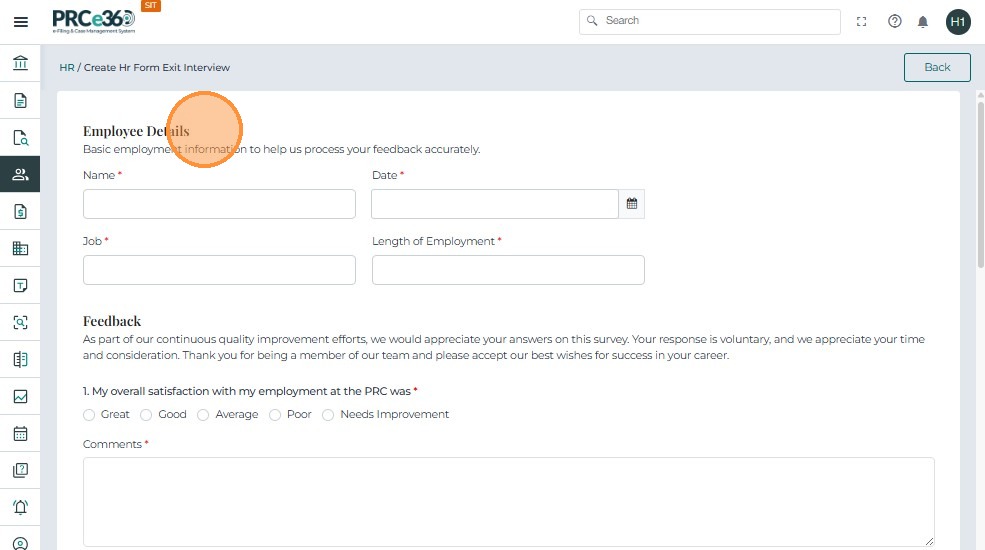
Enter the following mandatory information:
- Name – Full name of the departing employee.
- Date – Date of completing the form.
- Job – Employee’s position title.
- Length of Employment – Duration of the employee’s service.
-
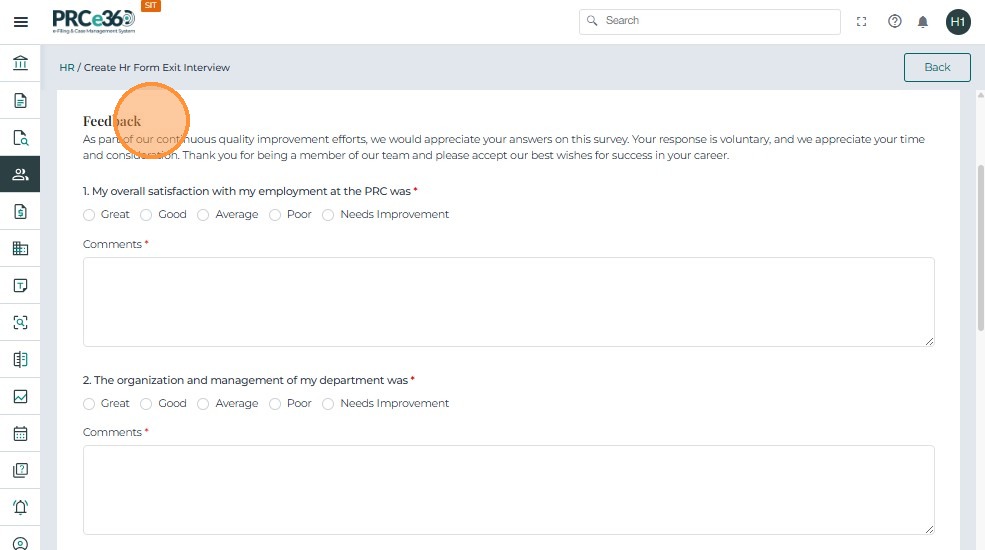
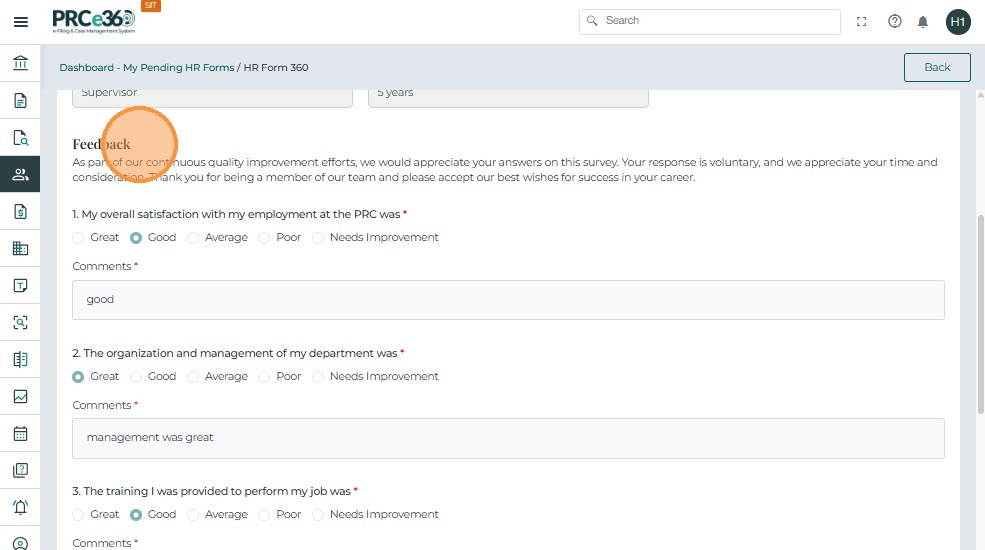
After filling in the employee details, scroll down to the Feedback section.
-
This section captures the employee’s overall experience and satisfaction during their time at the organization.
-
For each question:
- Select one option: Great, Good, Average, Poor, or Needs Improvement.
- Add any additional notes or remarks in the Comments field.
- Continue filling out all remaining feedback questions using the same format.
-
For each question:
- Select the appropriate rating.
- Provide supporting remarks in the Comments box.
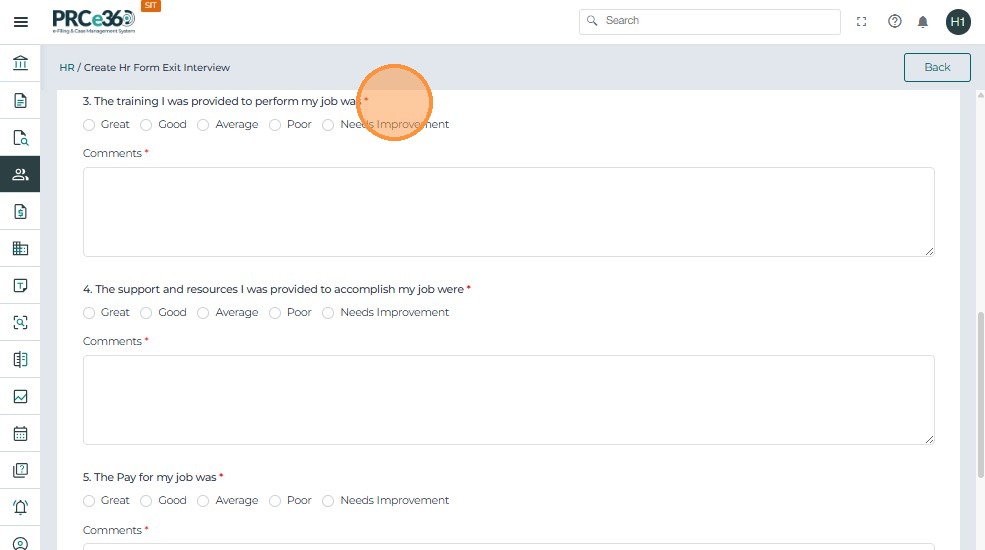
- Continue selecting the appropriate rating and entering comments for each feedback item, as required.
Final Comments and Submission
At the end of the Exit Interview Form, you must enter final comments to complete the process:
- Enter the Reasons for Leaving.
- Add a Recommendation for Improvement.
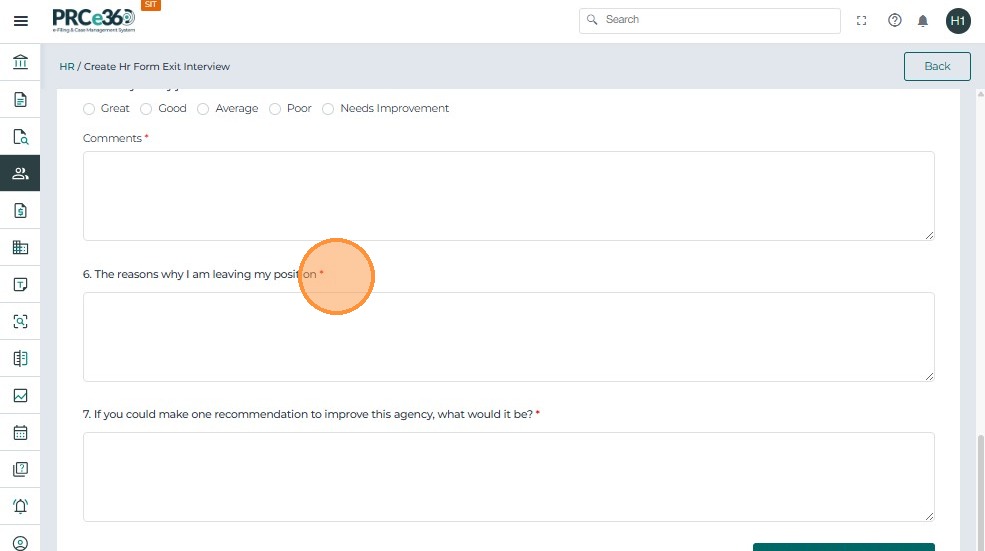
Once all required fields are completed, click Submit at the bottom-right corner of the screen.
The system will:
- Validate all mandatory fields.
- Generate a PDF copy of the completed Exit Interview Form.
- Mark the form as Completed.
- Move it to the All HR Forms Completed queue.
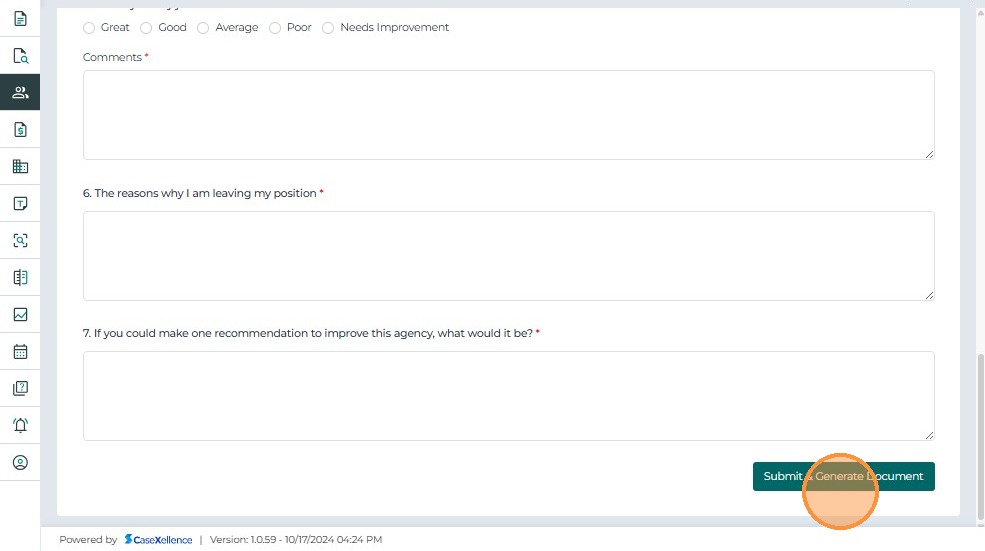
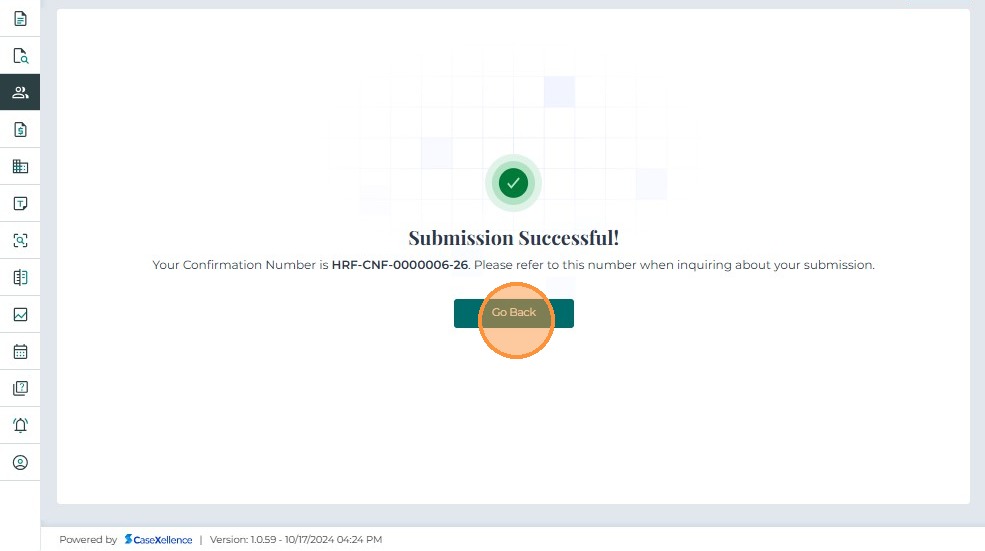
- After clicking Submit, the system displays a confirmation message indicating that your Exit Interview Form has been successfully submitted.
- The system generates a unique Confirmation Number (for example,
HRF-CNF-0000003-25) for reference. - Click Go Back to return to the HR Dashboard.
Viewing Completed Exit Interview Forms
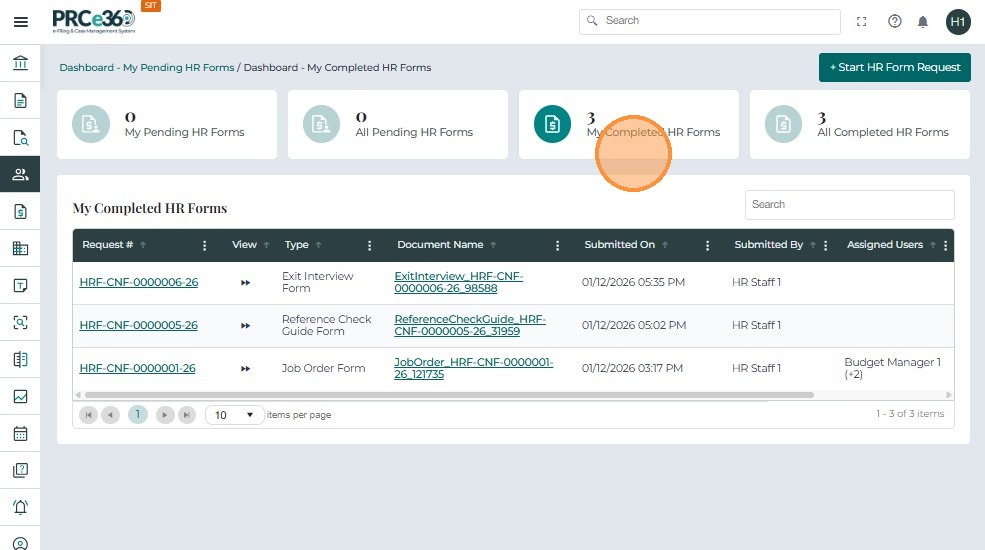
- From the dashboard, click My Completed HR Forms.
-
The system displays a list of all completed forms with details such as:
- Request # – Unique confirmation number for each submission.
- Type – The HR form type (e.g., Exit Interview Form).
- Document Name – Auto-generated file name for the PDF.
- Submitted On – Date and time of submission.
- Submitted By – The HR user who submitted the form.
- Status – Displays as Completed.
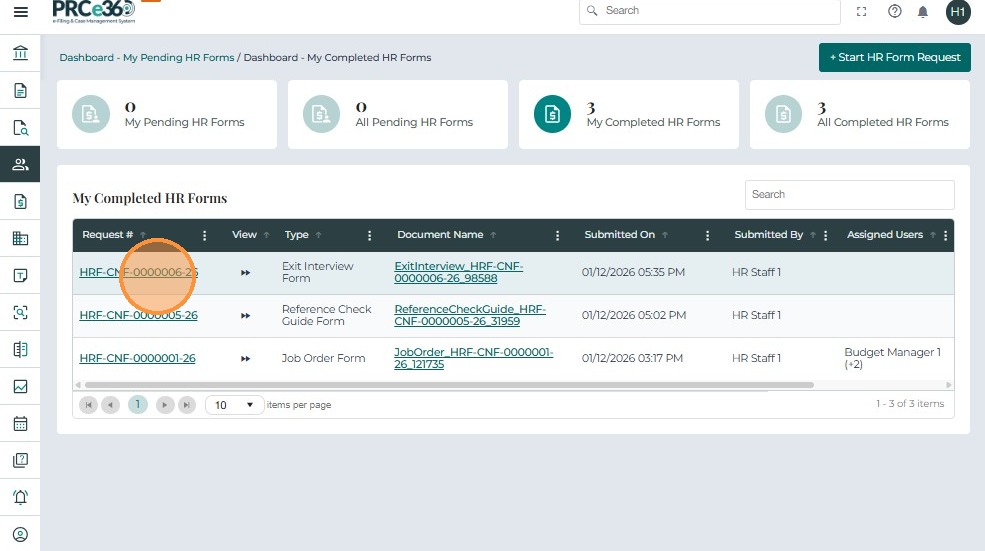
- Click the Request # or the Document Name link to open the submitted form.
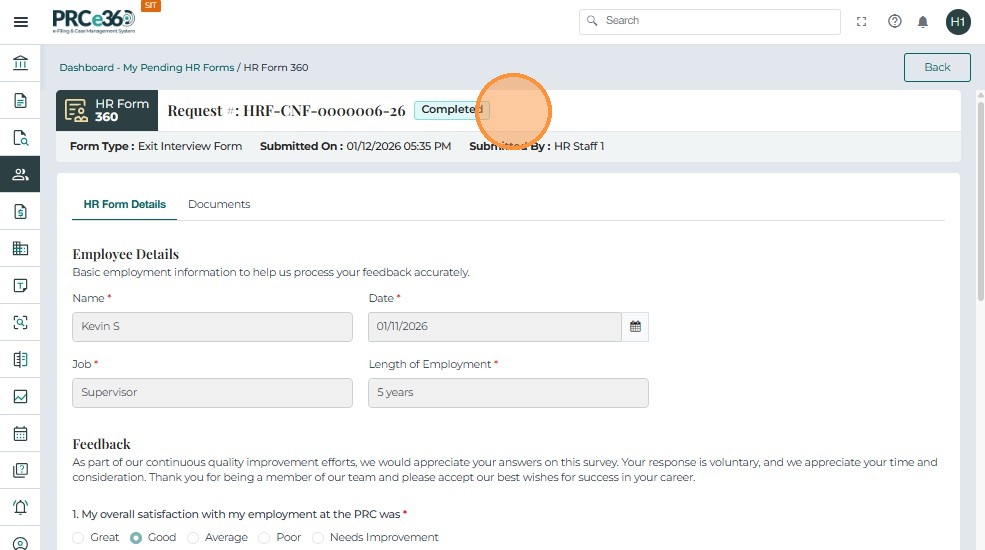
After selecting a form from the My Completed HR Forms queue, the system opens the Exit Interview Form 360 Details page.
- This page displays all the information entered during submission, allowing HR users to review the data without making changes.
- The form appears in read-only mode (fields are not editable).
- All sections — Employee Details and Feedback — are shown exactly as submitted.
- HR Managers and HR Staff can open and review the completed form at any time from My Completed HR Forms or All HR Forms Completed.
- No edits can be made once the form is submitted; it remains locked to maintain audit integrity.
Viewing the Exit Interview PDF
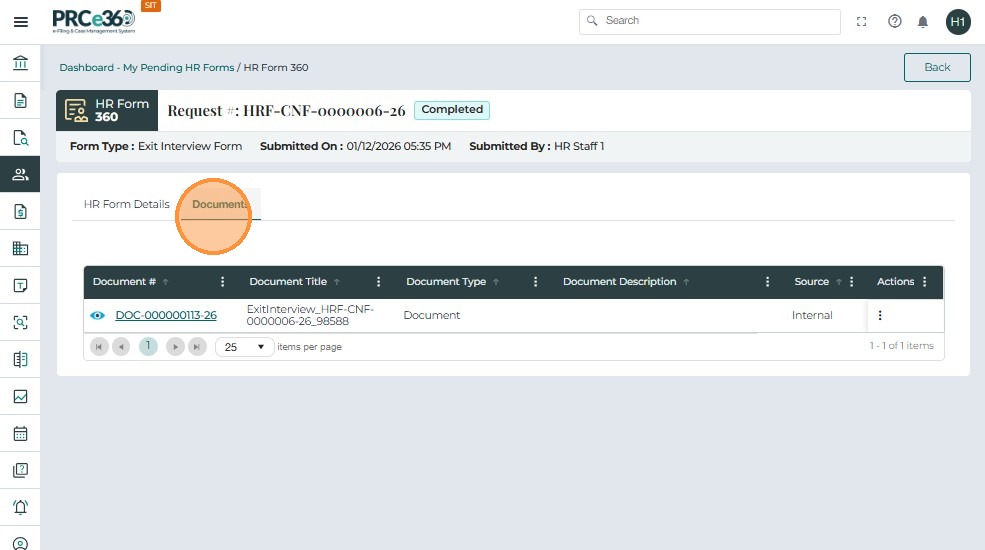
- Click the Documents tab.
- Click the Document # hyperlink.
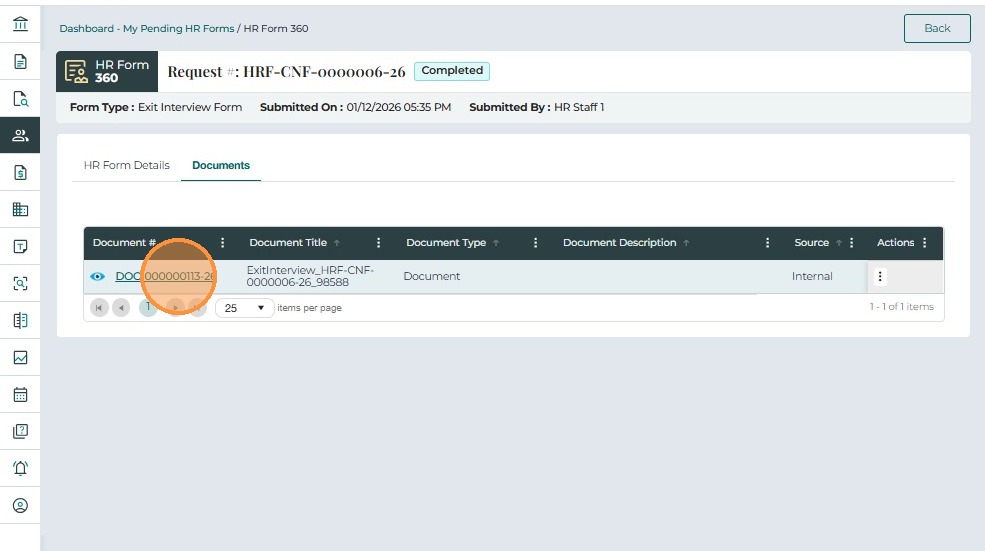
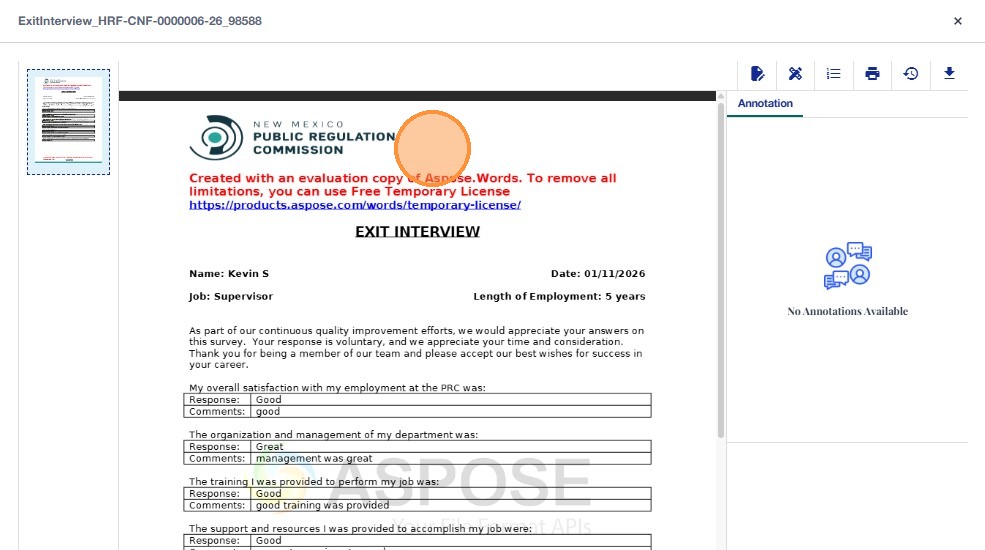
After selecting the document, the system opens the submitted Exit Interview Form as a PDF preview within the system’s viewer.
- The full Exit Interview Form opens in read-only PDF format for review.
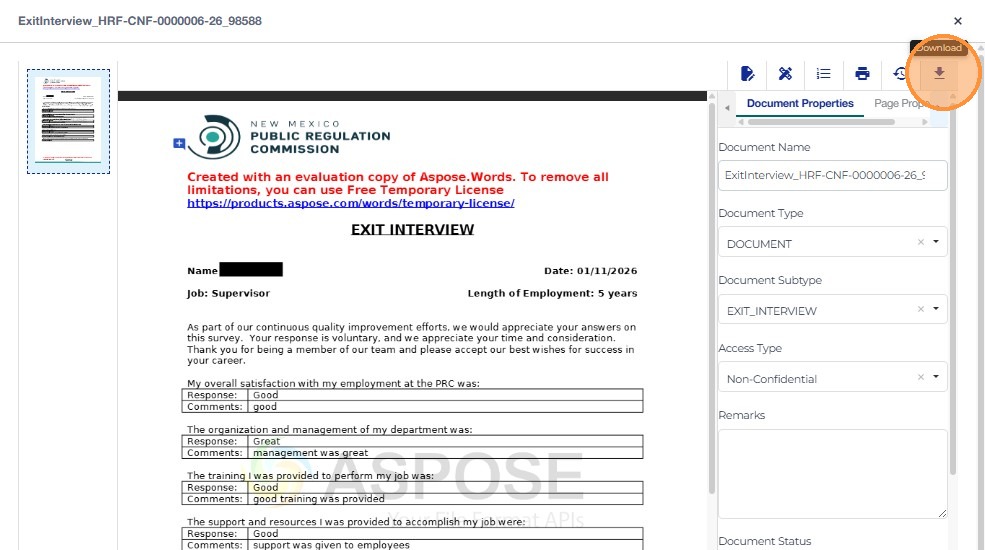
- Click the Download icon in the upper-right corner to save the PDF locally.
- The file is saved using its unique document name.
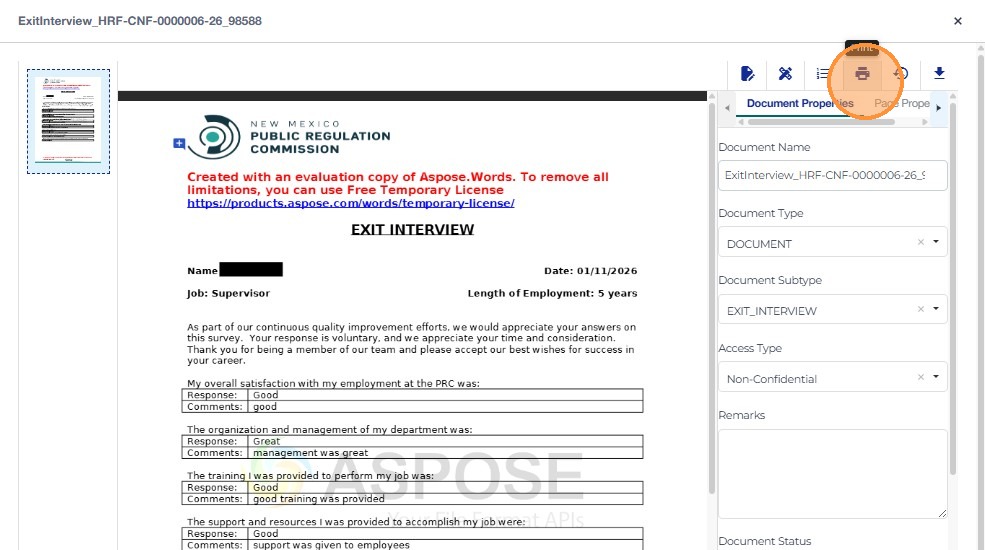
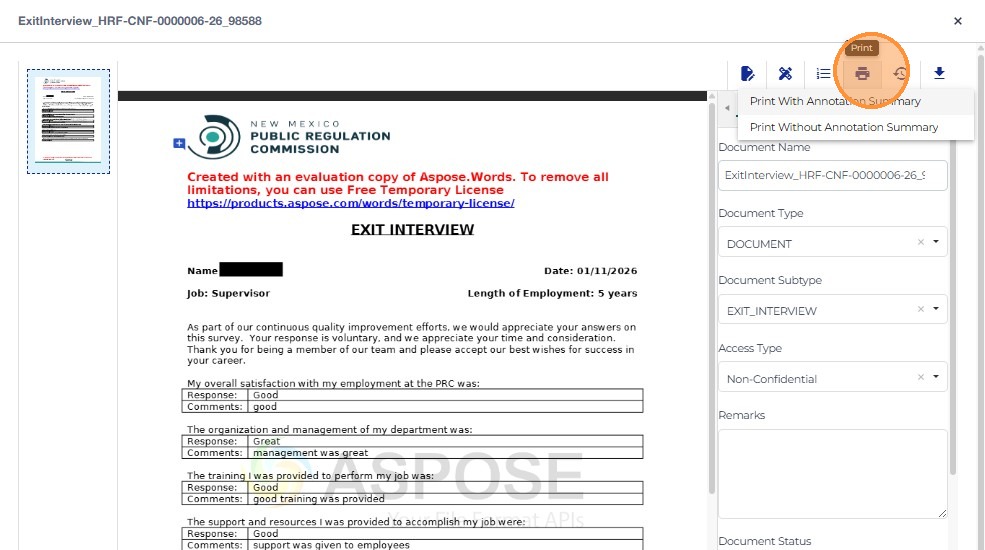
- Click the Print icon to print the document
-
Choose one of the print options:
- Print With Annotation Summary
- Print Without Annotation Summary
- Click the Properties icon in the PDF viewer to view or edit document metadata.
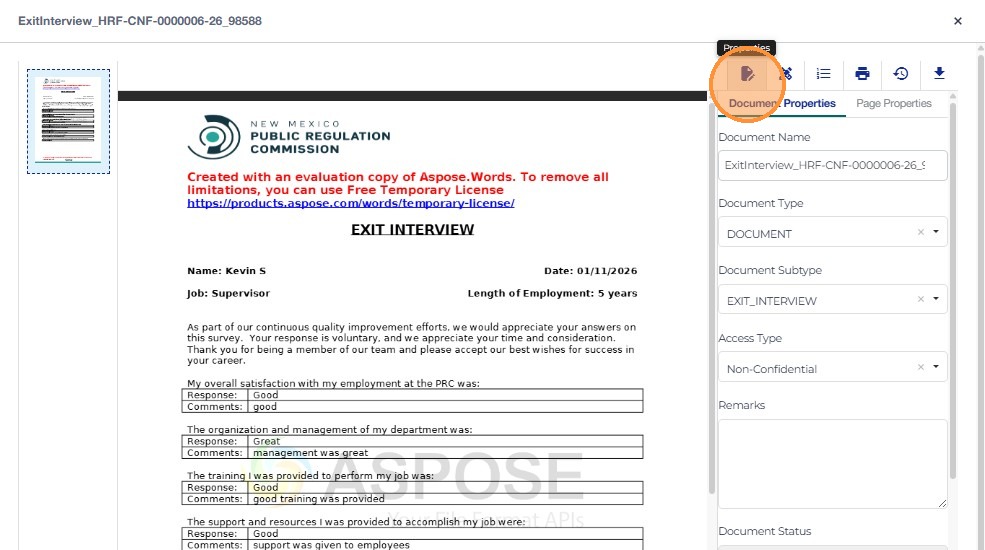
- The Document Properties panel opens, allowing the user to view or update details such as document name, type, subtype, access level, and remarks.
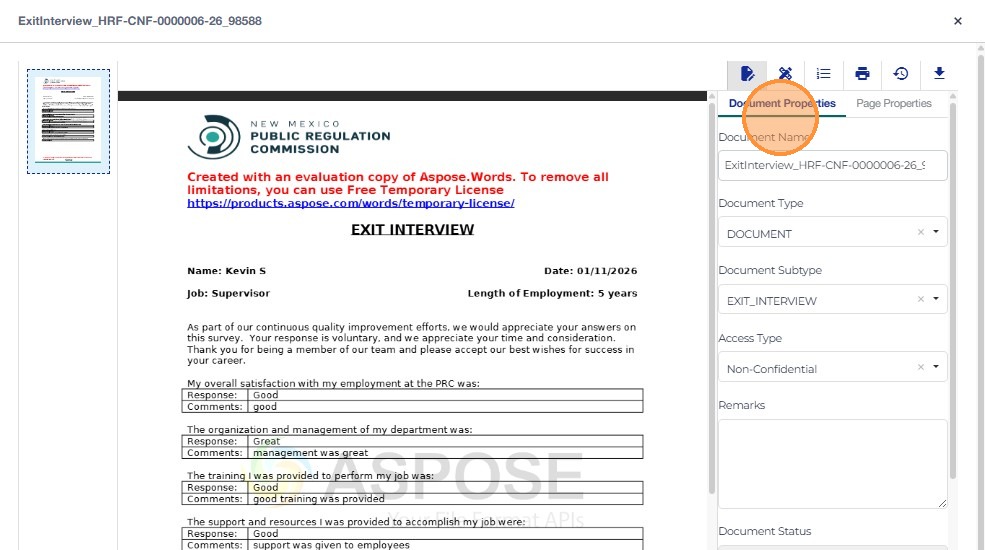
- The user selects the Review & Markup tool to access annotation and markup options for the PDF.
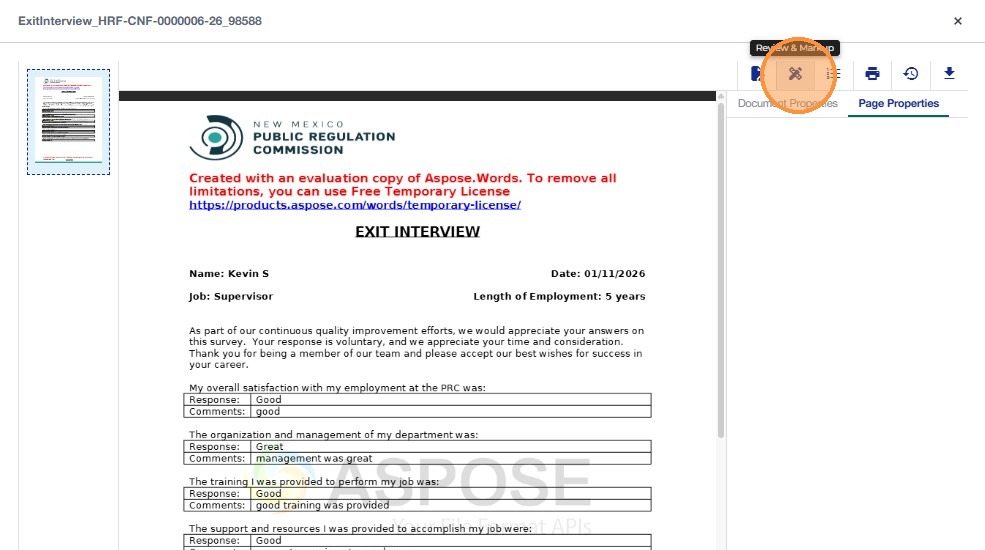
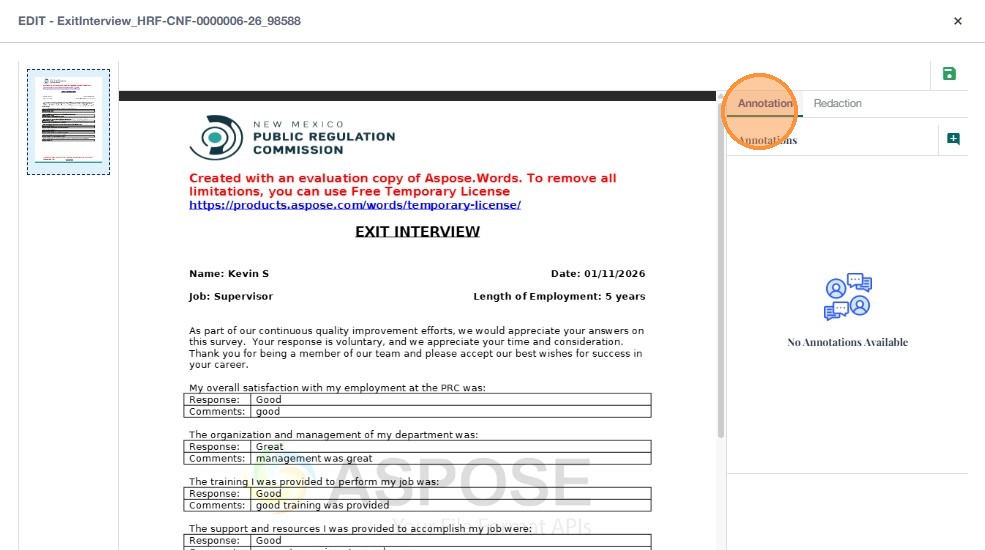
- The Annotation/Redaction panel displays, allowing the user to add comments or redactions to the document.
To learn more about document redaction and annotation, refer to the Document Redaction and Annotation section of this guide.
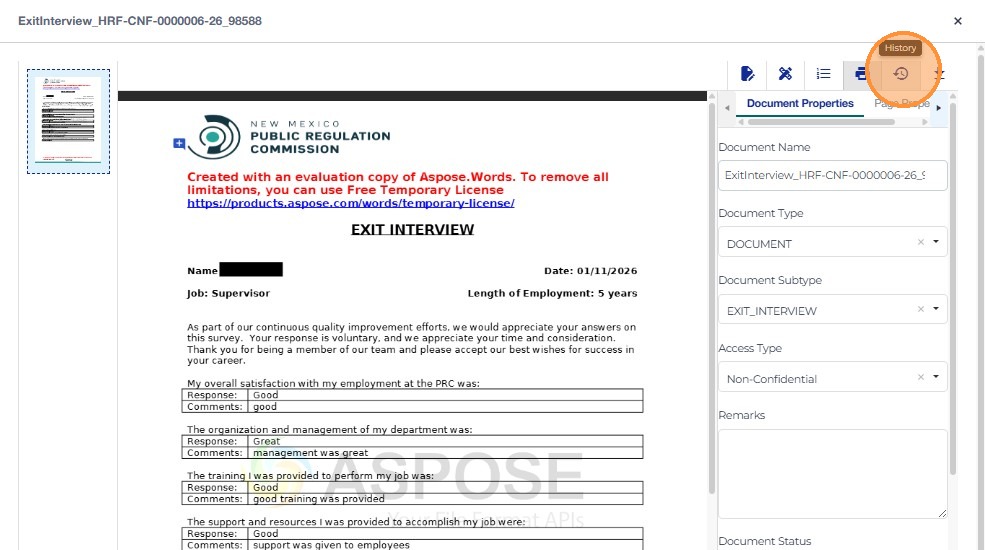
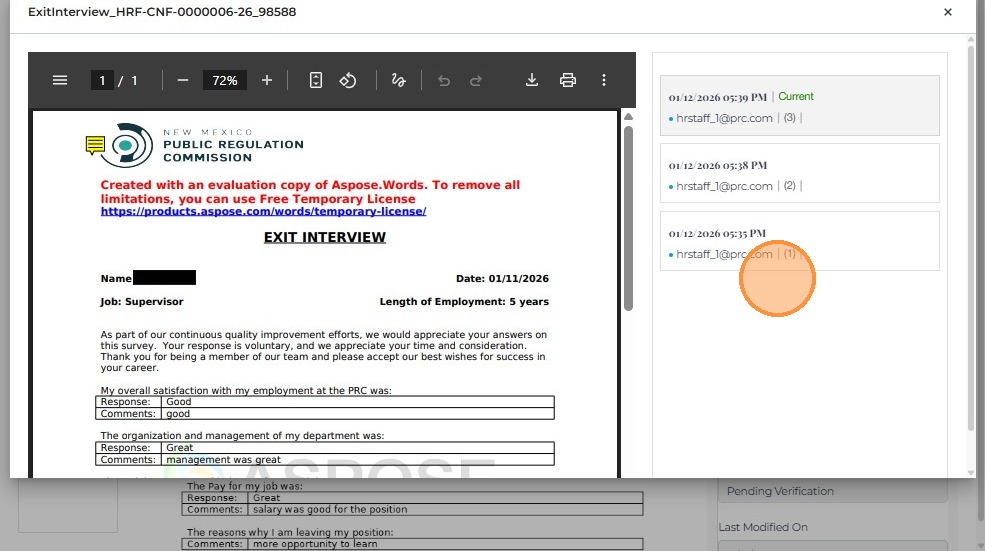
- The user clicks the History icon to view all previous versions and the modification timeline of the PDF.
- The Document History window shows version details, including timestamps and the users who edited or uploaded the file.
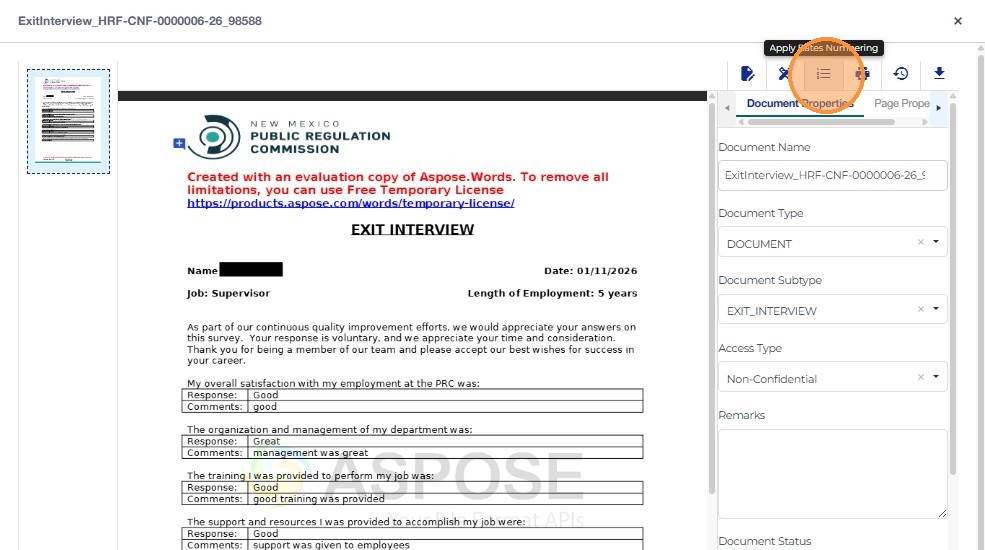
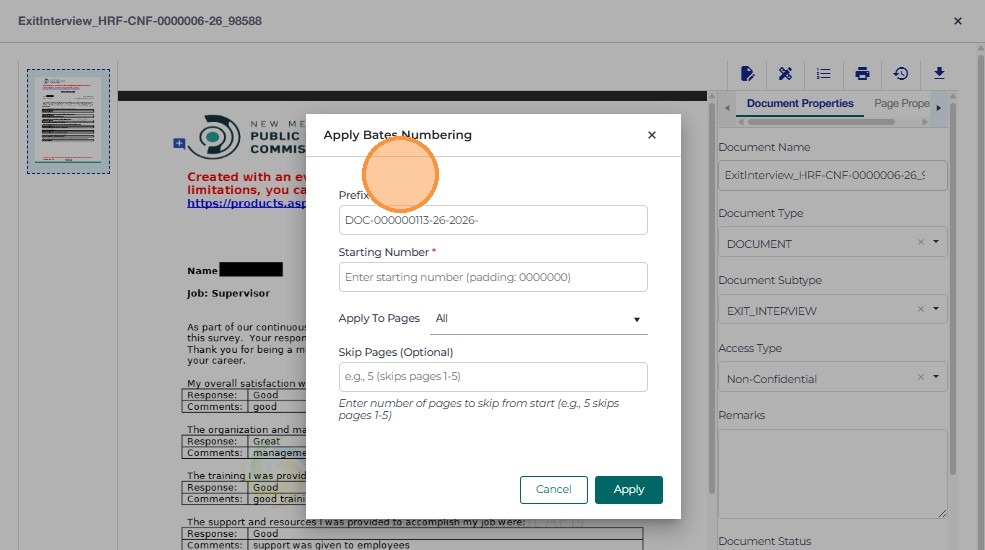
- Click on the Bates Numbering icon, to apply onto the document
- A pop up will appear to enter the starting number
- Click the X button in the top-right corner to close the preview and return to the HR dashboard.
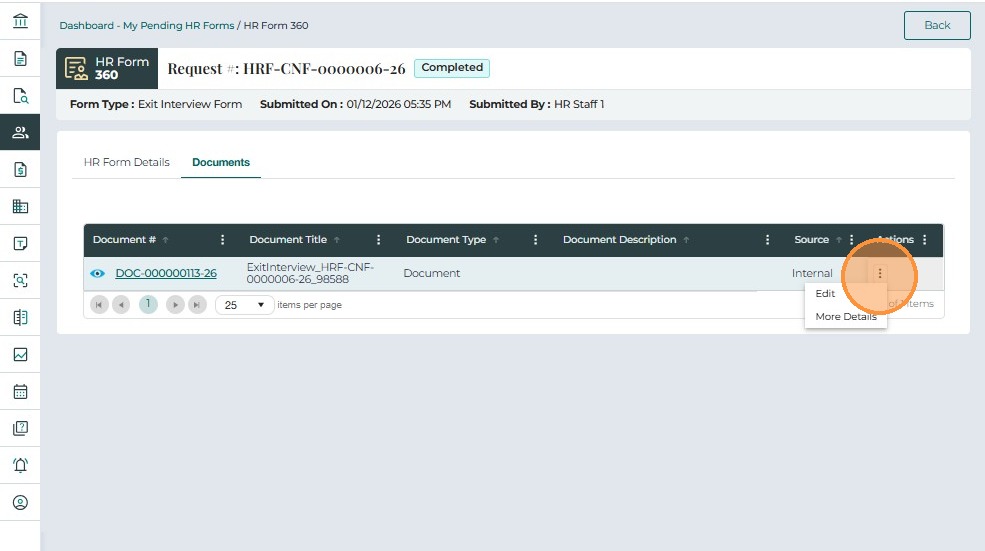
From the document list, HR Staff can use standard document actions that are consistent with other HR workflows:
- Edit
- More Details
These functionalities behave identically to the Actions menu used in other HR forms.